
How to Block Websites on Home WiFi (Every Device, Without Easy Loopholes)
Disclosure: this article contains an affiliate link. If you buy through it, we may earn a commission at no extra cost to you. Prices were checked on Gryphon’s US store on November 12, 2026. Code HAPPYSAVE takes $10 off at Gryphon.
Blocking a website on one laptop is easy. Blocking it on every device that joins your home WiFi is harder. That includes phones, tablets, game consoles, smart TVs and your kids’ friends’ devices. Most parents find out the hard way that the first method they try has a loophole a 12-year-old can find in an afternoon.
This guide covers the four real ways to block websites at home, from free to paid. For each one, it explains what it blocks, how long it takes to set up, and, most importantly, how kids get around it. By the end, you will know which combination fits your family, and where a dedicated parental control router is worth the money and where it is not.
First, Understand Where Blocking Can Happen
Every website visit passes through a few checkpoints. You can block at any of them, and where you block decides what you catch and what slips through.
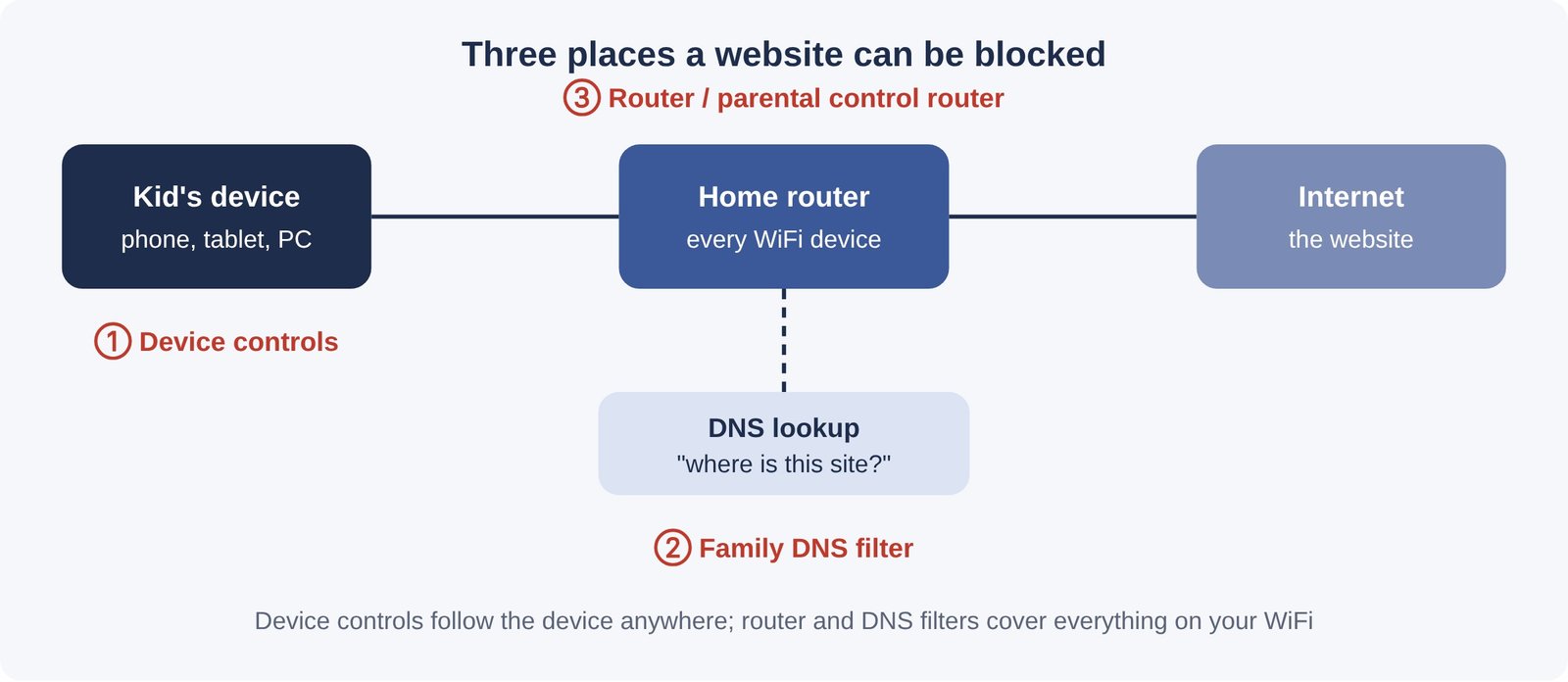
- On the device: Apple Screen Time, Google Family Link, Microsoft Family Safety and similar apps. These follow the device everywhere, but only cover devices you set up.
- At the DNS lookup: before loading a site, a device asks a DNS server where it lives. A family DNS filter answers “nowhere” for blocked sites. Set it on the router, and it covers every device on the WiFi.
- At the router: the router sees all traffic leaving the house. Basic routers can block a list of addresses. Parental control routers add profiles, schedules, device approval and reporting.
No single layer is perfect. The families who have the fewest problems combine a network layer, which catches every device, with a device layer on the kids’ own phones, which still works when they leave the house.
Method 1: Use Your Current Router’s Blocking Settings
Start here, because it costs nothing. Most home routers and ISP gateways have a section called “Parental Controls”, “Access Control”, “Site Blocking” or “URL Filter” in their admin page or app.
How to do it:
- Open your router’s app, or type its address (often 192.168.0.1 or 192.168.1.1, printed on the label) into a browser and sign in.
- Look for Parental Controls, Security or Access Control.
- Add the domains you want to block, for example
tiktok.com, and apply the rule to all devices or to specific devices. - Save, then test from a phone on the WiFi.
What works: it is free, takes ten minutes, and covers every device on the network, including consoles and TVs where you cannot install apps.
The catch: you have to list every site yourself. That is fine for blocking three social apps, but useless against the millions of adult and gambling sites out there. Many basic routers also struggle with HTTPS sites and with apps that use many different domains, so a “blocked” app may still half-work. If your router supports scheduling, the most useful free feature is often an internet pause or bedtime schedule for specific devices. That turns WiFi off for the kids’ phones at 10 pm without blocking anything else.
Method 2: Switch to a Free Family DNS Filter
This is the best free upgrade most homes can make. Instead of listing sites yourself, you point your router at a DNS service that already blocks adult content, malware and phishing. One change on the router, and every device on your WiFi gets filtered.
| Service | DNS addresses (IPv4) | What it blocks |
|---|---|---|
| Cloudflare 1.1.1.1 for Families | 1.1.1.3 and 1.0.0.3 | Malware, phishing and adult content; forces SafeSearch on public search engines |
| OpenDNS FamilyShield | 208.67.222.123 and 208.67.220.123 | Adult content, preconfigured, no account needed |
| CleanBrowsing Family Filter | 185.228.168.168 and 185.228.169.168 | Adult content, proxy and VPN websites, mixed-content sites such as Reddit, and public DNS-over-HTTPS servers; enforces SafeSearch and YouTube Restricted Mode |
How to do it: open your router settings, find the DNS fields under Internet, WAN or DHCP settings, replace them with one pair of addresses above, and save. Restart a couple of devices so they pick up the change, then try visiting a test adult site to confirm it is blocked.
What works: it is free, covers every device on the WiFi, and blocks whole categories rather than a hand-made list.
The catch, and it is a big one: DNS filtering is easy to bypass for anyone who knows how.
- Changing DNS on the device. A teen can set their phone or laptop to use a different DNS server and skip your filter entirely.
- DNS over HTTPS. Chrome and Firefox include encrypted DNS that can bypass the router’s DNS setting. CleanBrowsing’s Family Filter blocks the best-known public DoH servers, which makes it the strongest of the three against this trick.
- VPNs and proxies. A VPN app tunnels everything past DNS filters.
- It only filters by domain. It can block an entire site but not specific pages, so mixed-content platforms are all or nothing.
Some ISP routers also do not let you change DNS at all. If yours does not, a family DNS filter has to be set on each device instead, which loses the “every device” advantage.
Method 3: Device-Level Parental Controls
The controls built into phones and computers are free and, importantly, they keep working on mobile data and other people’s WiFi, which no home network filter can do.
- iPhone and iPad: Settings → Screen Time → Content & Privacy Restrictions → App Store, Media, Web & Games → Web Content → Limit Adult Websites. You can add specific sites to “Never Allow”.
- Android: Google Family Link lets parents manage Chrome’s site settings, block sites and approve apps on a child’s supervised account.
- Windows and Xbox: Microsoft Family Safety can filter websites and set screen time. Its web filtering applies to the Edge browser, so block other browsers if you rely on it.
The catch: you have to set it up on every device, one by one, and it only covers devices tied to your child’s account. It does nothing for a friend’s phone, a hand-me-down tablet nobody registered, or a smart TV browser. Device controls are essential for the phone your child carries, but they are not a home network solution on their own.
How Kids Actually Get Around Website Blocks
This is the part most “how to block websites” guides skip, and it is the part that matters. Here is how each method stands up to the bypasses kids really use:

A few of these deserve a closer look:
- Mobile data is the biggest hole. The moment a phone switches from WiFi to 4G or 5G, every home network filter stops applying. Only device-level controls, or a mobile add-on from your filtering provider, cover it. For a child with a data plan, device controls on that phone are not optional.
- VPNs come next. Free VPN apps are one search away. The practical defence is blocking app installs without approval (Screen Time’s “Ask to Buy” or Family Link approvals) plus a network filter that blocks known VPN and proxy services.
- The router reset is the classic move. Holding the reset button on most routers wipes every setting you made, including DNS and blocklists. Router placement matters, and so does a router that requires parent approval to reset.
- New devices slip in quietly. An old tablet or a borrowed laptop joins the WiFi with no device controls at all. Network-level filtering catches it; device controls cannot.
The pattern is clear. Network filters and device controls fail in opposite places, which is exactly why combining them works.
Method 4: A Parental Control Router
A parental control router replaces, or sits in front of, your ISP’s WiFi and builds filtering, profiles and schedules into the network itself. Instead of fiddling with DNS settings, you manage everything from a phone app. It is the most complete home network option, and also the most expensive.
Gryphon is one of the best-known brands in this space, built specifically around family internet safety. Its current flagship is the Gryphon Atlas Max, a tri-band Wi-Fi 7 router priced at $599. On the parental control side, Gryphon says it:
- Applies age-appropriate filters to each family member’s profile automatically, blocking more than 100 million dangerous or inappropriate sites out of the box.
- Sets daily time limits, homework and bedtime schedules, and an instant internet pause per person.
- Lets parents approve extra time from their phone and manage popular apps through the free Gryphon Connect app.
- Blocks malware, phishing and intruders at the network level, which protects smart-home devices that cannot run security software.
Two features matter most against the bypasses above. In TechLockdown’s hands-on review of the earlier Gryphon AX, the reviewer highlighted that new devices cannot join the WiFi until a parent approves them, even if the child knows the password. The review also noted that a factory reset requires parental approval, which closes the classic reset trick. The same review praised per-person and per-device activity logs.
Where it falls short
A router is not magic, and the same review is honest about the limits:
- It cannot see inside apps. Like every network filter, it can block Instagram entirely but cannot filter only the explicit parts of a mixed-content platform.
- Age presets can over-block. The reviewer found a children’s video app and a multiplayer game blocked by default and had to allow them manually.
- Mobile data still needs an extra layer. Gryphon’s HomeBound+ mobile protection extends supported controls to compatible phones on mobile data or other WiFi, but it requires the optional Premium Protection subscription. Gryphon lists the current subscription price in its app rather than on its website.
The free tier still covers the core of what most families need. According to Gryphon, profiles, content filters, screen-time schedules, firmware updates and built-in router security are included without a subscription. Premium Protection adds extra threat filtering, ad blocking, network alerts and HomeBound+.
Is $599 worth it?
That depends on your house. The Atlas Max is a high-end Wi-Fi 7 router as well as a parental control system. Gryphon rates it for up to 4,000 sq ft and more than 200 devices, with 10-gigabit ports and mesh support for larger homes. If your WiFi is already struggling, you would be buying a new router anyway, and the parental controls come built in.
If your current WiFi is fine and you mainly want adult content blocked, a free family DNS filter plus device controls will get you a long way. The router earns its price when you have several kids, many devices, a teenager who has already found the loopholes, or you simply want one app that handles schedules and filtering for everyone.
| Method | Cost | Covers every WiFi device | Works on mobile data | Hard to bypass |
|---|---|---|---|---|
| Router blocklist | Free | Yes | No | Low |
| Family DNS filter | Free | Yes | No | Low |
| Device controls | Free | No (only set-up devices) | Yes | Medium |
| Parental control router (Gryphon) | $599 + optional plan | Yes | With HomeBound+ | High |
Which Setup Fits Your Family

- Young kids, shared tablets, no phones: a family DNS filter on the router plus Screen Time or Family Link on the tablets covers nearly everything, for free.
- Tweens with their first phone: device controls on the phone become the priority, because the phone leaves the house. Add family DNS on the router, and turn on app-install approvals so VPN apps cannot sneak in.
- Teens, lots of devices, or a history of bypasses: this is where a parental control router such as Gryphon makes sense. Device approval, reset protection, per-person profiles and schedules close the holes that DNS filters leave open. Keep device controls on their phones for when they are out.
Five Habits That Make Any Block Work Better
- Lock down the router itself. Change the default admin password and place the router somewhere kids cannot easily reach the reset button.
- Use a separate guest network for visitors, with the same filtering, so friends’ phones do not get unfiltered access.
- Turn on SafeSearch and YouTube Restricted Mode at the account level as well as through your filter. Image searches are where many kids first see things parents would rather they did not.
- Test regularly. Once a month, try a blocked site from each child’s device, on WiFi and on mobile data.
- Talk about it. Every filter has gaps. Kids who know why the rules exist, and that they can come to you when they see something upsetting, are far safer than kids who are only blocked.
How to Get Gryphon for Less
If a parental control router fits your family, buy direct from Gryphon so you get the current model and the official warranty and support. The Atlas Max is $599 per unit at the time of writing, paid at checkout, with shipping and tax confirmed before you pay.
- Visit Gryphon’s store through the link below and choose the Atlas Max. Larger homes can add a second unit for mesh coverage.
- Enter HAPPYSAVE at checkout to take $10 off your order.
- Download the free Gryphon Connect app, set up a profile for each family member, and approve each device as it joins.
- Keep device-level controls on your kids’ phones for when they leave the house, or look at HomeBound+ in the app if you want Gryphon’s controls to follow them on mobile data.
Get $10 off Gryphon with code HAPPYSAVE
Sources: Gryphon Atlas Max product and specification pages; Gryphon Premium Protection page; TechLockdown, “Is the Gryphon router worth the premium price tag? An honest review from a parent”; Cloudflare blog, “Introducing 1.1.1.1 for Families”; IPFYI, “Parental Controls with DNS Filtering”; CleanBrowsing filter documentation; Apple, Google and Microsoft parental control help pages. Product features are as described by Gryphon unless otherwise attributed.